

Gimkit Kits Explained: Create Your First Quiz (2026)
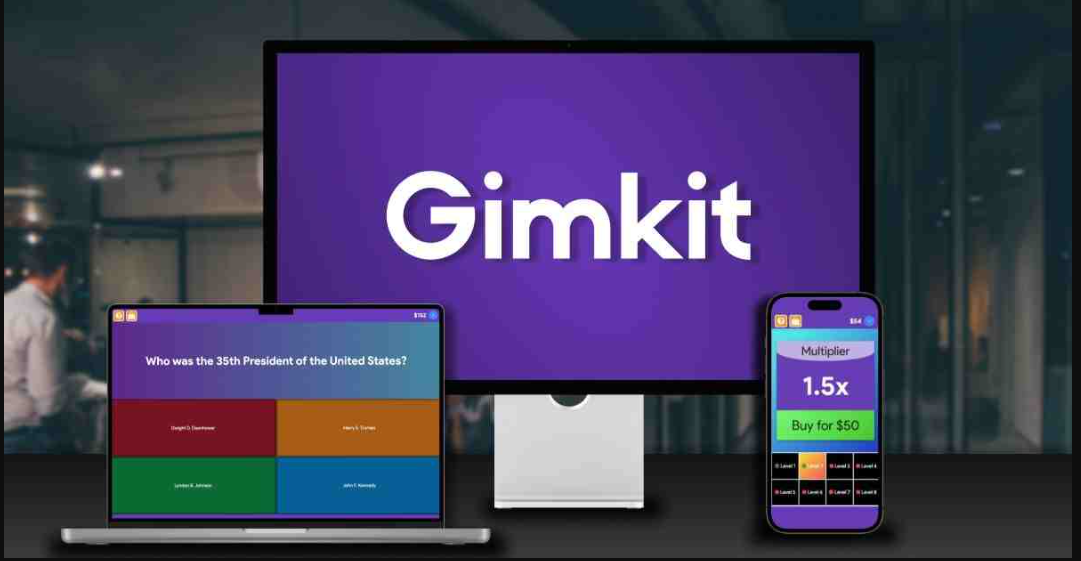
If you have ever watched students beg to play a learning game again, you have likely seen Gimkit in action. But behind every exciting live game or competitive team mode lies a basic building block: the Kit. A Kit is simply a set of questions and answers—the fuel that powers every game. Without a Kit, there is no quiz, no cash, and no competition. Understanding Kits is the first step toward becoming a confident Gimkit creator. This guide explains exactly what a Kit is, how to build one from scratch, and how to launch your first quiz in minutes.
What Exactly Is a Gimkit Kit?
Think of a Kit as a digital stack of flashcards, but smarter. Each Kit contains a collection of questions, each with its correct answer and optional wrong answers. When a game starts, the platform pulls questions from that Kit, shuffles them, and presents them to players. The same Kit can be reused across different game modes, different classes, and even different grading periods.
A single Kit can hold anywhere from five to several hundred questions. Most teachers find that twenty to thirty questions works well for a typical fifteen‑minute game. Too few questions, and students memorize the answers rather than learning the material. Too many, and the game feels endless. The sweet spot depends on your subject and the age of your students.
Kits live in your library. If you have a free account, you can store a limited number of Kits. Paid accounts allow unlimited storage, more advanced formatting options, and the ability to share Kits with other teachers.
Why Kits Matter More Than You Think
A well‑built Kit does more than just test recall. Because Gimkit recycles questions throughout a game, students see the same material multiple times. Each repetition reinforces learning. If your Kit contains clear, well‑written questions with useful wrong answers, students leave the game actually knowing the content, not just guessing correctly once.
Poorly built Kits have the opposite effect. Vague questions, typos, or obviously wrong distractors frustrate students and waste classroom time. Investing a few extra minutes in Kit creation pays off in smoother games and better outcomes.
Step-by-Step: Creating Your First Kit
You do not need any technical experience to build a Kit. The interface is visual and forgiving. Follow these steps to create a quiz you can use immediately.
Step 1: Log In to Your Account
Unlike joining a game, creating a Kit requires an account. Visit the Gimkit website and click “Sign Up” or “Log In.” You can register with a Google account, Microsoft account, or email address. Free accounts include basic Kit creation tools, which are plenty for most teachers. After logging in, you will land on your dashboard, sometimes called “My Kits.”
Step 2: Start a New Kit
Look for a prominent button labeled “New Kit,” “Create,” or a plus symbol. On most dashboards, this button appears near the top right corner. Click it. A blank editor opens, ready for your first question.
Step 3: Choose Your Creation Method
In 2026, you have several ways to build a Kit. For your first quiz, the manual method gives you the most control. However, it helps to know the other options:
-
Manual entry: You type every question, correct answer, and wrong answer. Best for when you have specific content or want full control.
-
Spreadsheet import: You prepare questions in a spreadsheet program, then copy and paste them in bulk. Best for moving existing quizzes into Gimkit.
-
AI generation: You enter a topic, textbook passage, or YouTube video link. The platform suggests questions automatically. Best for saving time when starting from scratch.
For this tutorial, choose manual entry to understand the anatomy of a question.
Step 4: Write Your First Question
The editor shows fields for the question text, correct answer, and up to three incorrect answers. Start simple. Ask something like: “What is the capital of France?” Set the correct answer as “Paris.” For wrong answers, enter common misconceptions like “Lyon,” “Marseille,” and “Bordeaux.”
Pay attention to capitalization. The platform treats “Paris” and “paris” as different answers unless you enable a case‑insensitive setting. For multiple‑choice questions, a single space or extra period can mark a correct answer as wrong. Double‑check your typing.
Step 5: Add More Questions
Below your first question, click “Add Question” or a similar button. Repeat the process. Try to vary question difficulty. Begin with foundational facts, then move to application or analysis. For example, after asking for the capital of France, ask: “Which French city is known as the culinary capital of the country?” (Answer: Lyon). This keeps students thinking rather than just matching.
Most new creators rush this step. Resist that urge. Write questions that require true understanding, not just keyword matching. A good test: if a student could answer the question without reading it fully, rewrite it.
Step 6: Adjust Kit Settings
Before saving, explore the settings menu, usually represented by a gear icon. Here you can:
-
Set time limits: Choose how many seconds students get per question. Short times favor fast recall; longer times favor deeper thinking.
-
Enable answer explanations: Add a short explanation for each correct answer. Students see this after answering, turning every question into a learning moment.
-
Randomize answer order: Shuffle the position of correct and wrong answers each time a question appears. This prevents students from memorizing that “C is always right.”
For your first Kit, leave these settings at their defaults. You can always edit them later.
Step 7: Save and Name Your Kit
Give your Kit a clear, searchable name. Instead of “Science Quiz,” try “Cell Biology – Grade 7 – Unit 3.” Good names save time when you have dozens of Kits. After naming, click “Save” or “Done.” Your Kit now lives in your library, ready to launch.
Launching Your First Quiz from a Kit
Creating a Kit is only half the journey. To turn it into a live game, go back to your dashboard, find your new Kit, and click “Play.” The platform then asks you to choose a game mode. For beginners, select “Classic Mode.” This is the standard format where students answer questions, earn cash, and buy upgrades.
After selecting the mode, the platform generates a six‑digit game code. Share this code with your students using a classroom screen, a chat message, or a verbal announcement. Once enough students join, click “Start Game.” Your Kit is now live. Watch as your carefully crafted questions drive competition, laughter, and learning.
Editing and Improving Kits Over Time
Your first Kit will not be perfect. That is fine. After playing a game, review the post‑game report. Which questions had the lowest accuracy? Were any questions confusing? Did students consistently miss a specific wrong answer? Use this data to edit your Kit. Remove bad questions, clarify wording, or add new questions targeting weak areas.
Great Kits are living documents. The best Gimkit teachers update their Kits after every game, gradually building a question bank that knows exactly what their students need. Start with one Kit, learn from it, and soon you will have a library of quizzes ready at a moment’s notice. Your students will thank you with every correct answer they earn.

 English
 Arabic
 French
 Spanish
 Portuguese
 Turkish
 Dutch
Dutch
 Italiano
 Russian
 Romaian
 Portuguese (Brazil)
 Greek
Greek