


Convert Embroidery File for Happy Machine: Complete Beginner’s Guide
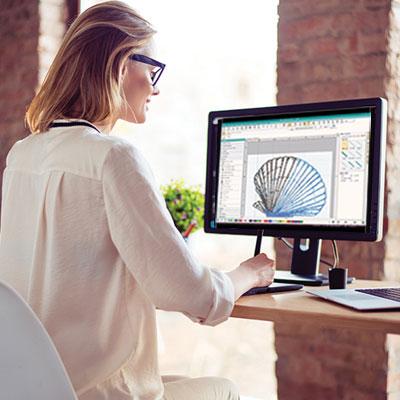
You’ve found the perfect embroidery design online, ready to bring a burst of creativity to your next project. You download it, load up your USB stick, and plug it into your embroidery machine, only to be met with a blank stare from the screen or a frustrating "incompatible file" error. Suddenly, your excited machine feels less than happy. This common roadblock has a straightforward solution: you need to learn how to Convert Embroidery File for Happy Machine. This guide is your friendly, no-jargon map to understanding file formats and using simple tools to get any design speaking your machine's language, so you can both get back to the happy business of stitching.
Introduction: Why Your Machine Has Feelings (About File Formats)
Think of your embroidery machine as a brilliant friend who only speaks one language fluently—let's say French. You find an amazing book (the design), but it's written in Spanish. Handing the Spanish book to your French-speaking friend will only lead to confusion. They can't enjoy the story.
In the embroidery world, brands speak different digital "languages." Brother machines typically read .PES, Janome uses .JEF, Husqvarna Viking often uses .HUS or .VP3, and industrial machines love .DST. An "incompatible file" error is just your machine saying, "I don't understand this language!" Converting the file is the act of finding a good translator or rewriting the story in French so your machine friend can understand and happily execute it. This guide will show you how to be that translator.
Step 1: The Detective Work – Identify the Languages
Before you can translate, you need to know what you're starting with and what you need to end up with.
-
What Language is Your Design In? (Source Format)
Look at the file you downloaded. The letters after the dot tell you the format.-
.PES (Common for Brother, Babylock)
-
.JEF (Janome)
-
.DST (Tajima, many industrial machines)
-
.HUS, .VP3 (Husqvarna Viking, Pfaff)
-
.EXP (Melco, some older Pfaff/Bernina)
-
.XXX (Singer)
The website you downloaded from should list the available formats.
-
-
What Language Does Your Machine Speak? (Target Format)
This is the most important piece of information. Check your machine's manual, the manufacturer's website, or look at the file extension of designs that you know work on your machine. You can't convert correctly without this.
Step 2: Your Translation Toolkit – Simple & Reliable Converters
You don't need to become a fluent speaker overnight; you just need a reliable translator. Here are the best beginner-friendly tools.
Tool #1: Wilcom TrueSizer (The Free, Trusty Dictionary)
This is the first tool every beginner should download. It’s free software from a major industry player, Wilcom.
-
How it Works: You install it on your computer. Open your source file (e.g., the .DST you downloaded) in TrueSizer. Then, you go to File > Save As, and in the dropdown menu, you choose your machine's format (e.g., .PES). Click save. That’s it.
-
Why Beginners Love It: It’s safe, offline, and lets you see the design before and after converting. It handles most common format translations flawlessly. It’s like having a seasoned translator in your pocket.
Tool #2: Your Machine's Brand Software (The Native Speaker)
Often overlooked, your machine's own basic software (like Brother's PE-Design Now or Janome's Digitizer Lite) can sometimes open a common format like .DST and save it in your machine's native format. Check if you have this software—it might have come with your machine.
Tool #3: Online Digitizing Services (The Professional Translator)
When you have a really important design or a complex file, and you want a guaranteed perfect translation, use a service.
-
How it Works: Go to a site like The Digitizing Hub or Embroidery Designs. Upload your file, select your target machine format, pay a small fee ($5-$15), and download the converted file. A human expert ensures the translation is perfect.
-
Best For: Important projects, gifts, or when you just want it done right with zero hassle.
A Word of Caution on "Magic" Online Converters: Avoid websites that promise "free instant conversion" from JPG to PES/DST/etc. These are not translators; they are attempting to create a new language from a picture, and they do it very poorly. They create unstitchable, messy files. Only use file-to-file converters, not image-to-file converters.
Step 3: The Step-by-Step "Happy Machine" Workflow
Let’s walk through the most common and reliable path using Wilcom TrueSizer.
-
Download & Install: Search for "Wilcom TrueSizer free download," get it from the official Wilcom site, and install it.
-
Open Your Source File: Launch TrueSizer. Click File > Open and find the design you downloaded (e.g.,
FloralDesign.dst). The design will appear on the screen. -
Do a Quick Visual Check: Make sure the design looks right—no missing parts or obvious errors. This is a great feature!
-
Initiate the Conversion: Click File > Save As.
-
Choose Your Machine's Language: In the window that pops up, look at the bottom for "Save as type." Click the dropdown menu. This list is huge! Scroll until you find your machine's format (e.g., Brother PES (.pes) or Janome JEF (.jef)). Click on it.
-
Save and Transfer: Give the file a clear name and save it directly to the USB drive you use for your embroidery machine.
-
Eject Safely: Eject the USB from your computer.
Step 4: The "Happiness Check" – The Test Stitch
You’ve translated the book. Now, you need to make sure the story still makes sense. The test stitch is your machine's first reading.
Why This is Non-Negotiable: Even a perfect format conversion can't fix a poorly digitized original design. The test stitch catches issues before they ruin your final project fabric.
How to Do It:
-
Hoop Scrap Fabric: Take a piece of fabric you don’t care about (an old pillowcase, scrap cotton) and hoop it WITH stabilizer. Stabilizer is the secret to clean embroidery; it supports the stitches.
-
Run the Converted File: Put the USB in your machine, select your newly converted file, and start stitching on the scrap.
-
Watch and Learn: Observe the first color. Does the machine run smoothly? Does the fabric lie flat or does it pucker?
-
Analyze the Result: After a few colors, stop and look.
-
Puckering? This is almost always a stabilizer issue (not enough, wrong type) or a problem in the original design's digitizing. Try a heavier stabilizer.
-
Gaps or Misalignment? The original design file might have digitizing issues.
-
Does it look like the picture? If yes, success! If not, the original design may have been low quality.
-
This test protects your time, thread, and good fabric. It’s the final, essential step to ensure a happy machine and a happy you.
Troubleshooting Common "Unhappy" Scenarios
-
"File Not Found" or No File on USB: Your USB stick might be formatted incorrectly. Many older machines need USB sticks formatted to FAT32, not exFAT or NTFS. Back up your USB, reformat it to FAT32, and try again.
-
Machine Still Says "Incompatible": Double and triple-check your target format. A Brother SE600 uses .PES, but a Brother PR series might use .PEC. Look it up!
-
Design is HUGE or tiny on the screen: You may have converted the format, but the size information got scrambled. You might need to resize the design in software before converting, or use your machine's scaling functions carefully.
Conclusion: Unleash a World of Designs
Learning how to Convert Embroidery File for Happy Machine is the master key that unlocks every online design library for your specific machine. It dissolves the frustration of incompatible formats and replaces it with the joy of limitless choice. By using a reliable tool like Wilcom TrueSizer, understanding the simple test stitch ritual, and knowing when to call in a professional service, you become the confident director of your embroidery projects.
Your machine is a happy, creative partner waiting for great instructions. Now you know how to provide them in a language it understands. So go explore those vast design collections, convert with confidence, and get back to what you both love most—creating something beautiful, one perfect stitch at a time.

 English
 Arabic
 French
 Portuguese
 Deutsch
 Turkish
 Dutch
Dutch
 Italiano
 Russian
 Romaian
 Portuguese (Brazil)
 Greek
Greek