


YouTube Video to MP3/MP4: A Complete 2026 Conversion Guide for Safe Offline Access
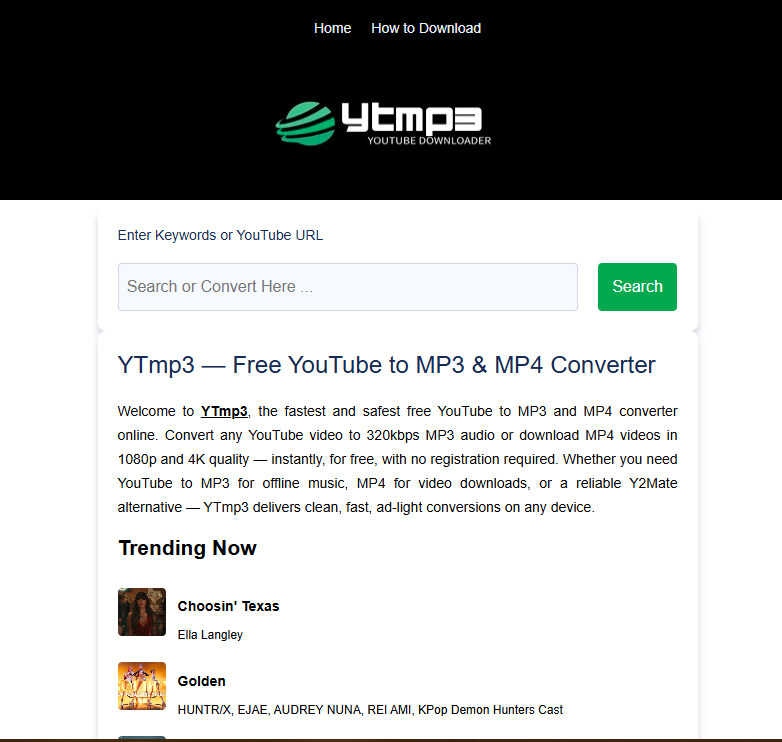
Streaming might be everywhere now, but it hasn't killed the demand for downloadable files. Not even close. Commuters still want their podcasts saved before they lose signal on the train. Students screenshot lecture videos and save them for later, away from spotty wifi. And creators? They just want a backup of their own uploads sitting somewhere safe.
That's basically why "YouTube video converter," along with names like Y2mp3 and Y to MP3, keeps showing up in search results year after year. The tools have gotten better. So has the need to know which ones are actually worth using in 2026.
MP3 or MP4? Here's the Difference
Quick gut check before you convert anything: do you need to see it, or just hear it?
MP3 strips out the video entirely. You're left with audio only — fine for music, podcasts, recorded calls, whatever doesn't need a picture attached. MP4 keeps everything together, video and sound, which matters for tutorials, vlogs, or anything where watching is the point.
Pick wrong and you'll end up with a giant video file when all you wanted was the audio. Annoying, and it eats your storage for no reason.
So How Does Conversion Actually Work?
It's less "magic" and more plumbing, honestly. Here's the rough sequence:
1. You paste in the YouTube link.
2. The tool grabs the video's data stream and finds the audio or video track you asked for.
3. That stream gets re-encoded into MP3 or MP4, at whatever quality you picked.
4. You get a file back, ready to download.
One thing worth knowing: the converter can't make a low-quality video look better. Whatever resolution and bitrate the original had, that's your ceiling.
Spotting a Trustworthy Tool (vs. One to Avoid)
Not all converters are created equal — some are genuinely fine, others are barely held together with ads and shady redirects. Whether you're trying Y2mp3, Y to MP3, or something less known, here's what to check.
Good signs:
- Runs in your browser, no install required
- HTTPS padlock visible in the address bar
- A privacy policy you can actually find and read
- Reviews that show up on independent sites too, not just glowing testimonials on the homepage
Warning signs:
- Asks you to download an .exe from a site you've never heard of
- Pop-ups everywhere, or it keeps redirecting you somewhere else
- A 3-minute song downloading as a 400MB file (that's not normal)
- No contact info, no "About" page, nothing
The Legal Part Nobody Wants to Talk About
Most guides skip this, but it's the part that actually matters. YouTube's Terms of Service don't allow downloading videos unless YouTube itself offers that option — think Premium's offline downloads — or the creator has given explicit permission.
A few ground rules worth following:
- Only convert stuff you own, public-domain content, or videos under a license that allows downloads (Creative Commons, for example).
- Copyrighted music or monetized videos? Leave those alone for conversion or sharing.
- Copyright law isn't the same everywhere — what counts as "fair use" in your country might not fly somewhere else.
- Don't re-upload or sell what you've converted. That's usually how copyright strikes happen.
None of this is meant to scare you off the tools. It's just the difference between using them responsibly and getting your account flagged.
A Quick Walkthrough
1. First, make sure you're actually allowed to download this particular video.
2. Grab the URL from YouTube — address bar or the share button both work.
3. Head to a secure, HTTPS converter. Don't just click the first result; a quick glance at reviews saves headaches later.
4. Pick your format and quality.
5. Run the downloaded file through antivirus before opening it — especially if it's a desktop app, not a browser tool.
6. Move it into a proper folder right away. Future-you will thank present-you.
Mistakes People Keep Making
- Installing browser extensions from developers nobody's heard of, with permissions way broader than they need.
- Clicking through security warnings just to make a pop-up go away.
- Getting tricked by fake "Download Now" buttons that are actually ads.
- Not bothering with quality settings, then wondering why the file is huge and the audio still sounds mediocre.
Questions People Actually Ask
Is it legal to convert any YouTube video to MP3? Not really, no — unless it's something you own, it's public domain, or it's licensed for download. Otherwise you're looking at a potential copyright issue, on top of breaking YouTube's own rules.
Do these converters need software installed? Most don't anymore. Browser-based tools have become the norm, and they're generally safer than downloading a separate app from somewhere random.
Why does my converted file look worse than the original? Because the converter is working with what it's given. If the source video was already low-res or low-bitrate, no amount of converting fixes that.
MP3 or MP4 for saving lecture videos? Depends on what you actually need. Just the audio? MP3 keeps the file small. Need to see the slides too? Go with MP4.
Are Y2mp3 and Y to MP3 actually safe? They're both widely searched, which also means there are fake copycat versions floating around. Stick to the genuine, HTTPS-secured site, skip anything that forces a download, and scan whatever you save before opening it.
Bottom Line
People are going to keep converting YouTube videos — that's not changing anytime soon. The smarter move in 2026 is just being a little more careful about it: pick browser-based tools with clear privacy practices, scan your downloads, and only convert what you're actually allowed to. Do that, and offline access stays simple without the headaches.

 English
 Arabic
 French
 Spanish
 Portuguese
 Turkish
 Dutch
Dutch
 Italiano
 Russian
 Romaian
 Portuguese (Brazil)
 Greek
Greek