


SharePoint Online Team Site Backup: Your Complete Guide
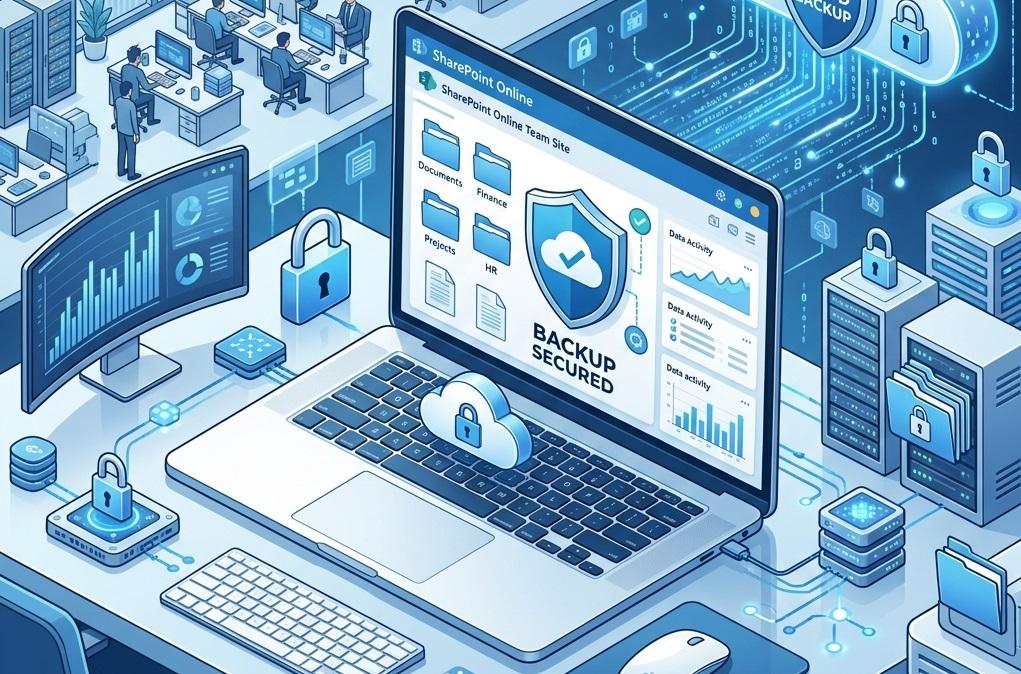
Summary: SharePoint Online does not offer a built-in, one-click backup solution for team sites. To protect your data, you need to combine Microsoft 365's native retention and versioning features with third-party backup tools or manual export methods. This guide covers every method, step by step.
Losing critical team site data in SharePoint Online is more common than most IT admins expect. A document gets permanently deleted, a misconfigured permission wipes a library, or a sync error corrupts files—and suddenly, your team is scrambling. Microsoft's shared responsibility model makes it clear: while Microsoft protects the infrastructure, protecting your data is your job.
So how do you actually back up a SharePoint Online team site? The answer isn't a single button. It's a layered strategy—combining native Microsoft 365 features with third-party tools or manual exports. This guide breaks down every method available, who each one suits, and how to execute each approach correctly.
Does SharePoint Online Have a Built-In Backup Feature?
This is the most common question—and the answer is nuanced. SharePoint Online does not offer a traditional, scheduled backup that you can restore with a single click. However, Microsoft provides several native protections that act as a safety net:
- Versioning: Tracks changes to files, allowing you to restore previous versions.
- Recycle Bin: Retains deleted items for up to 93 days (first-stage: 93 days; second-stage site collection recycle bin adds an additional buffer).
- Microsoft 365 Backup (Preview): A newer Microsoft offering that enables point-in-time restore for SharePoint sites, OneDrive accounts, and Exchange mailboxes—available through the Microsoft 365 admin center.
These features are helpful, but they have limitations. Versioning only works if it's enabled before data loss occurs. The Recycle Bin has a time cap. And Microsoft 365 Backup is a paid add-on, not included in standard licenses.
Method 1: Enable and Configure Versioning on SharePoint Libraries
Versioning is your first line of defense. Without it, overwritten files are gone permanently.
How to enable versioning on a document library:
- Navigate to your SharePoint team site.
- Open the document library you want to protect.
- Click Settings (gear icon) > Library settings.
- Under General Settings, select Versioning settings.
- Under Document Version History, choose Create major versions (or major and minor versions for draft control).
- Set a version limit—Microsoft recommends keeping at least 500 major versions for critical libraries.
- Click OK to save.
Once enabled, SharePoint automatically saves a new version every time a file is edited. To restore a previous version, right-click the file, select Version history, and click Restore next to the version you need.
Pro tip: Apply versioning at the site collection level using PowerShell to enforce it across all libraries at once—rather than enabling it library by library.
Method 2: Use the SharePoint Recycle Bin Effectively
The two-stage Recycle Bin gives you up to 93 days to recover deleted content. Here's how it works:
- Stage 1 (End-User Recycle Bin): Items deleted by users appear here. Users can restore their own deleted content directly.
- Stage 2 (Site Collection Recycle Bin): Items cleared from Stage 1—or deleted by admins—move here. Only site collection admins can access and restore from this stage.
To access the Site Collection Recycle Bin:
- Go to your SharePoint team site.
- Click Settings > Site contents.
- Select Recycle Bin from the top navigation.
- Click Second-stage recycle bin at the bottom of the page to view admin-level deleted items.
Items permanently deleted or aged out of the Recycle Bin beyond 93 days cannot be recovered through this method alone.
Method 3: Use Microsoft 365 Backup for Point-in-Time Restore
Microsoft 365 Backup enables admins to restore an entire SharePoint site to a specific point in time—up to 30 days in the past. This is the closest Microsoft gets to a traditional backup solution.
How to set up Microsoft 365 Backup:
- Sign in to the Microsoft 365 admin center.
- Navigate to Settings > Microsoft 365 Backup.
- Enable backup for SharePoint sites.
- Select the specific team sites you want to protect.
- To restore, select a site, choose a restore point, and confirm.
Important: Microsoft 365 Backup is a paid add-on. As of 2024, it is priced per user per month and must be purchased separately from standard Microsoft 365 licenses. Verify current pricing through the Microsoft 365 admin center or your licensing partner.
Method 4: Export and Download Site Content Manually
For smaller teams or one-time backup needs, manually exporting content is a straightforward option.
Export a document library using "Sync" and OneDrive:
- Open the SharePoint document library.
- Click Sync to sync the library to your local machine via OneDrive.
- Copy the synced folder to an external drive or secondary cloud storage.
Export site data using SharePoint Admin Center:
- Go to the SharePoint Admin Center.
- Select Sites > Active sites.
- Click on the team site and use the export options available (note: full site export capabilities vary by license).
This method works well for archiving purposes but is not a scalable backup strategy for large environments.
Method 5: Deploy a Third-Party Backup Solution
For enterprises or organizations with strict data protection requirements, third-party tools deliver the most comprehensive SharePoint Online backup capabilities. Leading solutions include:
- Shoviv SharePoint Backup Tool: This software comes with advance backup management for sharepoint data. multiple filter option allow presiced backup.
- Veeam Backup for Microsoft 365: Granular item-level restore, flexible storage targets, and automated scheduling.
- AvePoint Cloud Backup: Designed specifically for Microsoft 365, with multi-geo support and automated backup policies.
Choose a third-party tool if:
- You need automated, daily backups with defined retention policies (e.g., 1 year or longer).
- Your organization operates under compliance frameworks like HIPAA, GDPR, or ISO 27001.
- You require granular restore capabilities—recovering a single list item, folder, or permission set.
Native Microsoft tools suit smaller teams with basic needs. Third-party solutions are the right investment for organizations where data loss carries regulatory or financial consequences.
SharePoint Online Backup Best Practices
Regardless of which method you choose, apply these practices to build a resilient backup strategy:
- Enable versioning on all libraries before you need it. Retroactive enabling won't recover already-overwritten files.
- Audit your Recycle Bin settings regularly. Confirm that second-stage retention is active and accessible to admins.
- Test your restores. A backup you've never tested is a backup you can't trust. Schedule quarterly restore drills.
- Document your backup policy. Define RPO (Recovery Point Objective) and RTO (Recovery Time Objective) for your team sites so expectations are clear before an incident occurs.
- Monitor storage quotas. Versioning increases storage consumption. Set version limits and monitor site storage usage in the SharePoint Admin Center.
Build a Backup Strategy You Can Rely On
SharePoint Online team site backup is not a set-and-forget task—it's an active, layered strategy. Start by enabling versioning and confirming your Recycle Bin settings. Evaluate whether Microsoft 365 backup meets your restore requirements. If your organization handles sensitive data or operates under compliance mandates, invest in a third-party backup solution that automates the process and gives you full control over retention.
Data loss rarely announces itself in advance. The teams that recover fastest are the ones that built their backup strategy before they needed it.
Also Read these articles:-
- https://www.shoviv.com/blog/export-entire-sharepoint-lists-to-excel/
- https://www.shoviv.com/blog/download-all-videos-from-sharepoint-online/
- https://www.shoviv.com/blog/download-multiple-files-from-sharepoint-like-a-pro/
- https://www.shoviv.com/blog/map-sharepoint-online-as-a-network-drive-on-windows/
- https://www.shoviv.com/blog/backup-sharepoint-site-data/
- https://www.shoviv.com/blog/backup-sharepoint-online-in-microsoft-365/
- https://www.shoviv.com/office365-backup.html
Frequently Asked Questions
Does SharePoint Online automatically back up team site data?
SharePoint Online does not provide a traditional scheduled backup. Microsoft protects platform infrastructure, but data protection—including backup and recovery—is the customer's responsibility. Native features like versioning, the Recycle Bin, and the Microsoft 365 Backup add-on provide partial protection, but a comprehensive strategy typically requires additional tools.
How long does SharePoint Online keep deleted files?
Deleted files are retained in the SharePoint Recycle Bin for up to 93 days. After that, they are permanently deleted. Site collection admins can access a second-stage Recycle Bin to recover items cleared by end users within this window.
What is the best third-party tool for SharePoint Online backup?
Veeam Backup for Microsoft 365, AvePoint Cloud Backup, and Acronis Cyber Protect Cloud are among the leading third-party solutions. The best choice depends on your organization's size, compliance requirements, and budget. All three offer automated scheduling and granular item-level restore.
Can I back up a SharePoint team site without admin access?
Limited options are available without admin access. End users can sync document libraries to their local machines via OneDrive and copy files externally. However, full site backup—including lists, permissions, and metadata—requires site collection admin or SharePoint admin privileges.
What is Microsoft 365 Backup, and is it free?
Microsoft 365 Backup is a Microsoft add-on that enables point-in-time restore for SharePoint sites, OneDrive accounts, and Exchange mailboxes. As of 2024, it is a paid feature and is not included in standard Microsoft 365 licensing. Pricing is available through the Microsoft 365 admin center.

 English
 French
 Spanish
 Portuguese
 Deutsch
 Turkish
 Dutch
Dutch
 Italiano
 Russian
 Romaian
 Portuguese (Brazil)
 Greek
Greek