


aka.ms/startLinking: How to Connect Your Phone to Windows
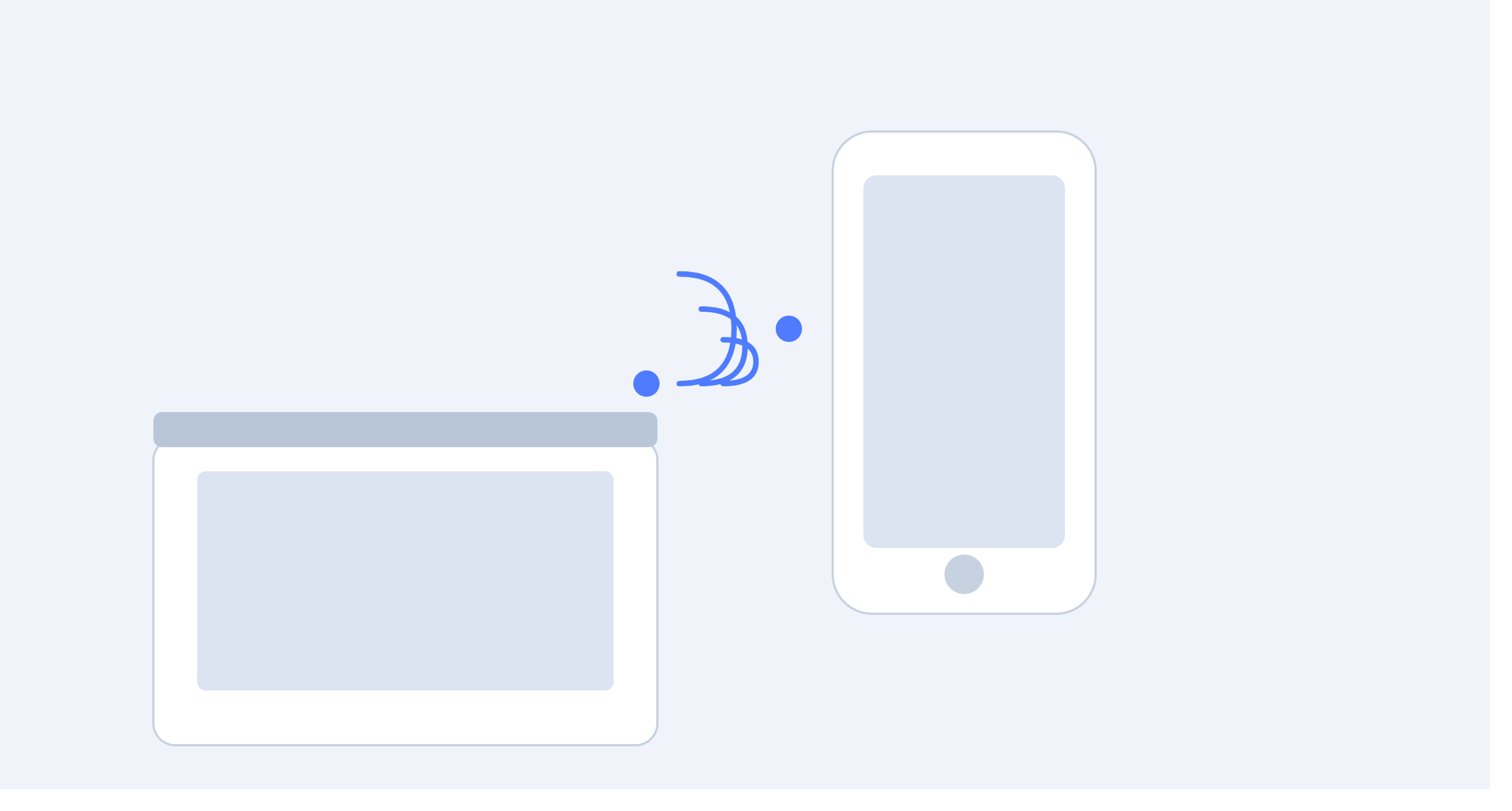
Your phone and your PC work better together. Once you connect them, texts, calls, and notifications show up right on your desktop. Microsoft handles this through the Phone Link app, and aka.ms/startLinking is the address that kicks off the setup.
This guide covers the full setup process, what to check beforehand, and how to fix the errors people run into most.
What aka.ms/startLinking Does
aka.ms/startLinking opens the starting screen for Phone Link setup. From there, you choose your phone type, scan a QR code or sign in, and finish pairing your device with your PC. It's the entry point, not a separate app.
Once your phone links to your PC, you get:
- Texts and calls handled straight from your desktop
- Phone notifications mirrored on your screen
- Instant access to your recent photos
- App mirroring for supported Android phones
- Drag-and-drop file transfer between devices
What You Need Before You Start
Setup takes a few minutes if you check these first.
- Windows 10 or Windows 11, fully updated
- An Android phone on version 8.0 or later, or an iPhone for calls and texts
- Phone Link installed on your PC (built in on most versions)
- Link to Windows on Android, or Phone Link on iPhone
- Wi-Fi on both devices, matching networks work best
- Bluetooth enabled for calls and background sync
Samsung and Honor phones usually ship with Link to Windows already installed, which skips a step.
Step-by-Step Setup
- Open Phone Link on your PC, or go to aka.ms/startLinking in your browser to start the flow.
- Sign in with your Microsoft account.
- Pick your phone type, Android or iPhone.
- Your PC shows a QR code. Open the companion app on your phone and scan it.
- Confirm the connection prompt on your phone screen.
- Wait for the initial sync. Most devices finish in under a minute.
If you'd rather skip the QR code on Android, sign in with your Microsoft account directly on your phone instead. The result is the same, just a different path to get there.
Setting Up on iPhone
iPhone setup runs through Safari instead of a native app search.
- Go to aka.ms/startLinking on your iPhone.
- Tap "Continue without QR Code."
- Install Phone Link from the App Store when prompted.
- Sign in with your Microsoft account.
- Type the 8-character code shown on your PC screen.
Texts, calls, and photos work well on iPhone. App mirroring and full file access stay limited to Android because of platform restrictions on Apple's side.
Fixing Common Setup Problems
QR code won't scan or scan fails repeatedly. Clean your camera lens and hold the phone steady about six inches from the screen. If it still fails, switch to the sign-in method instead of the QR code.
Devices pair but nothing syncs. Check that both devices use the same Microsoft account. A second account on either device breaks the sync even after pairing succeeds.
Notifications arrive late or not at all. Turn off battery optimization for Link to Windows in your phone's app settings. Aggressive power-saving modes block background notifications.
PC shows "waiting for connection" indefinitely. Close Phone Link and the phone app completely, not just minimize them. Reopen both and restart the pairing steps.
File transfers are slow. Move both devices onto the same Wi-Fi network. Bluetooth alone handles small syncs fine but struggles with photos and files.
Removing or Switching Devices
Getting a new phone means unlinking the old one first.
- Open a browser and go to accounts.microsoft.com/devices/android-ios.
- Sign in with your Microsoft account.
- Select the device you want to remove and choose "Unlink."
- Restart Phone Link on your PC so the change takes effect.
You can also handle this from inside the Phone Link app. Open Settings, go to "My Devices," and select "Unlink" next to the device.
Getting a Stable Connection
- Keep your phone within 30 feet of your PC for reliable Bluetooth range.
- Install updates on both devices as they come out. Most sync issues trace back to outdated software.
- Prefer the same Wi-Fi network over relying on Bluetooth for everything.
- Restart your router if several devices on the network show delayed syncing at once.
Wrapping Up
aka.ms/startLinking sets up the connection between your phone and PC in a handful of steps. When something breaks, it's almost always a mismatched account, a weak Bluetooth signal, or software that needs an update. Work through the steps in order and the connection stays reliable after that.

 English
 Arabic
 French
 Spanish
 Portuguese
 Deutsch
 Turkish
 Dutch
Dutch
 Italiano
 Russian
 Romaian
 Greek
Greek