


aka.ms/linkphoneqr: How to Link Your Phone to Windows with a QR Code
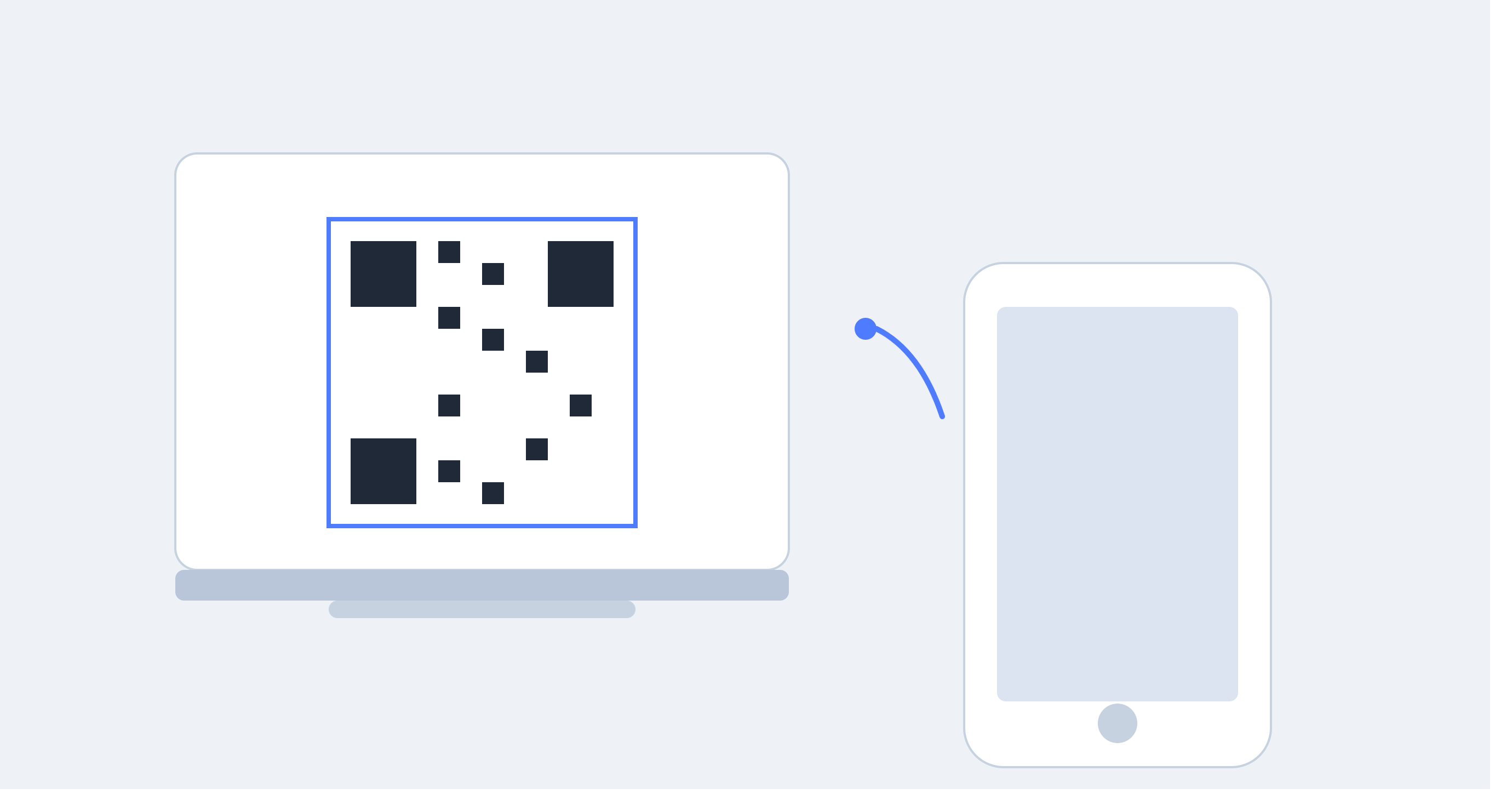
QR code pairing is the fastest way to connect your phone to Windows. No typing codes, no long sign-in forms. You scan a code, confirm on your phone, and your devices sync within seconds. aka.ms/linkphoneqr is the Microsoft link that starts this process for the Phone Link app.
This guide covers the QR setup step by step, along with fixes for the errors people run into most.
What Is aka.ms/linkphoneqr
aka.ms/linkphoneqr is a Microsoft short link tied to Phone Link, the built-in Windows app for connecting Android and iPhone devices to your PC. The QR method is the default pairing option for Android users. You scan a code shown on your computer screen with your phone camera, and the two devices link without manual entry.
Once linked through the QR method, you get:
- Texts and calls on your PC
- Real time notifications from your phone
- Access to recent photos
- App mirroring on supported Android devices
- Drag and drop file transfer between phone and PC
What You Need Before Scanning
Gather these first. Missing one of them is the top reason QR pairing fails.
- Windows 10 or Windows 11, fully updated
- An Android phone running version 8.0 or later
- The Phone Link app open on your PC
- The Link to Windows app installed and open on your phone
- Both devices on Wi-Fi, same network for best results
- Bluetooth enabled on both devices
Samsung, Honor, and Surface Duo phones support the fullest feature set with QR pairing.
How to Pair Using the QR Code
- Open Phone Link on your PC.
- Sign in with your Microsoft account.
- Select Android as your device type.
- Choose the QR code option when prompted.
- A code appears on your PC screen.
- On your phone, open Link to Windows and tap the scan icon.
- Point your camera at the QR code on your PC screen.
- Confirm the pairing request on your phone.
- Wait for the sync to complete. This usually takes 10 to 20 seconds.
If your phone doesn't open the camera automatically, look for a "Scan QR Code" button inside the Link to Windows app and tap it manually.
Why QR Pairing Beats Manual Sign-In
Manual sign-in asks you to enter your Microsoft account credentials on your phone, which takes longer and increases the chance of typos. QR pairing skips that step entirely. Your phone reads the code, matches it against the session your PC opened, and completes the handshake. You avoid password fields and reduce setup time to under a minute.
Common QR Pairing Problems and Fixes
Camera doesn't recognize the code. Clean your phone camera lens and increase your screen brightness. Low contrast between the code and its background causes most scan failures.
Code expires before you scan it. QR codes from Phone Link expire after a few minutes. Refresh the code on your PC by closing and reopening the pairing screen, then scan again right away.
Scan succeeds but pairing doesn't finish. Check that both devices sit on the same Wi-Fi network. A mismatched network lets the scan register but blocks the final sync.
Link to Windows app crashes during scan. Update the app from the Play Store. Older versions have known bugs with the camera permission handler on some Android skins.
Phone shows "invalid code" after a successful scan. This usually means the PC generated a new code after you started scanning. Restart the pairing flow from step 4 above and scan the fresh code immediately.
Switching from Manual Sign-In to QR
If you paired manually and want to switch to QR for a second device, unlink the first device before adding a new one.
- Open Phone Link on your PC.
- Go to Settings, then My Devices.
- Select the device you want to remove and choose Unlink.
- Start the pairing flow again and select the QR code option this time.
Tips for a Smooth Scan
- Hold your phone about 6 to 10 inches from the screen for the clearest scan.
- Turn off screen dimming on your PC before starting the pairing flow.
- Avoid glare from overhead lights on your monitor when scanning.
- Keep your phone's camera app permissions enabled for Link to Windows.
Final Thoughts
aka.ms/linkphoneqr gets you paired in under a minute once you know the steps. Most problems trace back to a weak Wi-Fi match, an expired code, or an outdated app. Work through the checklist above, and your phone and PC stay connected without repeated setup attempts.

 English
 Arabic
 French
 Spanish
 Portuguese
 Deutsch
 Turkish
 Dutch
Dutch
 Italiano
 Romaian
 Portuguese (Brazil)
 Greek
Greek