


IPTV Not Working? Common Problems and How to Fix Them
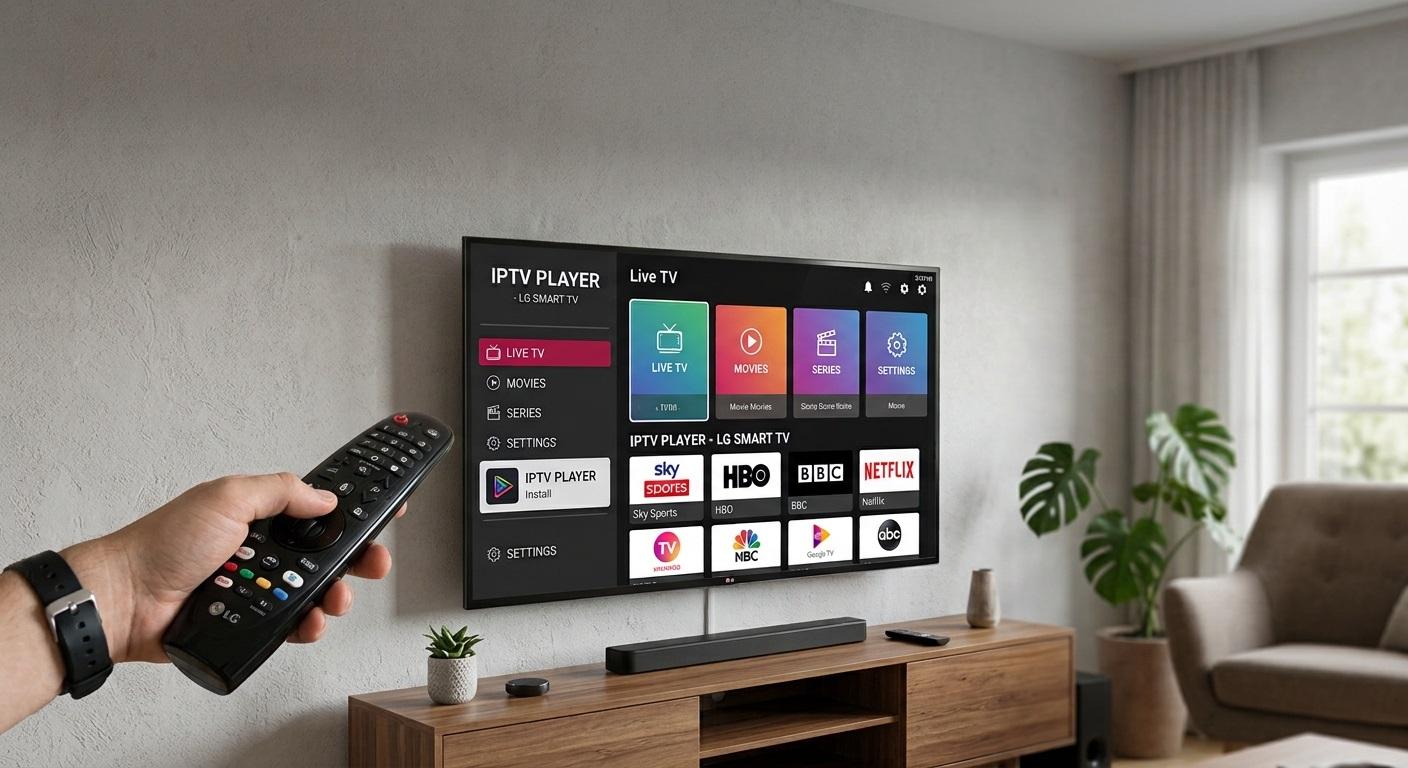
IPTV Canada users sometimes experience buffering, freezing, connection errors, black screens, or channels that suddenly stop working. These issues can interrupt your favourite movies, live sports, TV shows, and entertainment. Fortunately, most IPTV problems have straightforward solutions that you can try at home.
Whether you watch IPTV on a Smart TV, Android TV Box, Fire TV Stick, smartphone, or computer, understanding the cause of the problem can help you restore your streaming experience without unnecessary frustration.
In this guide, we will explain the most common IPTV problems, why they happen, and how to fix them step by step. You will also learn how to improve your internet connection, troubleshoot IPTV apps, and enjoy more reliable streaming in Canada.
Why Is IPTV Not Working?
IPTV (Internet Protocol Television) delivers television content through an internet connection rather than traditional cable or satellite signals.
When IPTV stops working, the problem can come from several sources, including your internet connection, streaming device, IPTV application, or service provider.
Here are some common reasons:
-
Slow or unstable internet connection.
-
Temporary IPTV server outages.
-
Outdated IPTV applications.
-
Incorrect login credentials.
-
Device compatibility problems.
-
Corrupted app cache or temporary files.
-
VPN or network configuration issues.
-
Expired or inactive subscriptions.
Identifying the actual cause is the first step toward finding the right solution.
1. IPTV Buffering or Constant Loading
Buffering is one of the most frustrating problems for IPTV users. It happens when your device cannot receive video data quickly enough to play content continuously.
You may notice a loading circle, interrupted playback, or videos that repeatedly pause.
Common Causes of IPTV Buffering
-
Weak Wi-Fi signals.
-
Slow internet speeds.
-
Too many devices using the same network.
-
Network congestion during peak hours.
-
Unstable streaming servers.
-
Poor-quality Wi-Fi routers.
How to Fix IPTV Buffering
Check your internet speed: Run an internet speed test to determine whether your connection is fast and stable enough for streaming. As a general starting point, aim for around 10 Mbps for HD streaming and 25 Mbps or more for 4K streaming per active stream. Actual requirements depend on the video quality and network conditions.
Restart your router: Turn off your router for approximately 30 seconds and switch it back on. This can resolve temporary network problems.
Use an Ethernet connection: If possible, connect your Smart TV or Android TV Box directly to your router using an Ethernet cable. Wired connections are often more stable than Wi-Fi.
Reduce network usage: Pause large downloads, online gaming, and other bandwidth-heavy activities while streaming.
These simple adjustments can significantly improve your streaming experience.
2. IPTV Channels Not Loading
Another common issue occurs when some or all IPTV channels refuse to load.
You might select a channel and see a black screen, an error message, or a continuous loading animation.
Why Are IPTV Channels Not Working?
Possible reasons include:
-
Temporary server maintenance.
-
An unavailable or discontinued channel.
-
Incorrect playlist configuration.
-
Expired subscription access.
-
Internet connectivity problems.
-
Regional content restrictions.
Solutions to Try
-
Check whether other websites and streaming applications are working.
-
Close your IPTV application completely.
-
Restart your streaming device.
-
Refresh your playlist if your application supports this feature.
-
Check whether your subscription is still active.
-
Contact your provider to confirm whether the channel is experiencing an outage.
If only one channel is unavailable while others work normally, the issue may be related to that particular channel rather than your internet connection.
3. IPTV App Keeps Crashing or Freezing
Sometimes the IPTV application itself becomes unstable. It may close unexpectedly, freeze during playback, or stop responding when you open the channel list.
This can happen on Android TV Boxes, Fire TV devices, Smart TVs, and mobile phones.
How to Fix an IPTV App That Keeps Crashing
Clear the application cache
Temporary files can sometimes cause performance issues.
On most Android devices:
-
Open Settings.
-
Select Apps.
-
Find your IPTV application.
-
Open Storage.
-
Select Clear Cache.
-
Restart the application.
Avoid selecting Clear Data unless necessary, because this may remove saved login details and application settings.
Update the IPTV application
An outdated application may contain bugs or compatibility issues. Check the official app store or developer's website for updates.
Restart your device
Restarting your Smart TV, Android Box, or Fire TV Stick can clear temporary system issues.
Reinstall the application
If the problem continues, reinstall the application from a trusted source. Make sure you have your login credentials and playlist information before removing it.
4. IPTV Black Screen but Sound Is Working
A black screen with audio is another issue that IPTV users may experience.
You can hear the programme, but the video does not appear correctly.
Possible Reasons
-
Unsupported video codec.
-
Incorrect hardware decoding settings.
-
Outdated application.
-
Device compatibility issues.
-
Temporary playback errors.
How to Fix the Black Screen Problem
Try the following solutions:
-
Close and reopen the IPTV application.
-
Restart your streaming device.
-
Update your IPTV player.
-
Switch between hardware and software decoding if your player provides this option.
-
Test another channel to determine whether the problem affects all content.
-
Check whether your device supports the video's format.
If only one particular channel displays a black screen, contact your provider and report the issue.
5. IPTV Login Failed or Invalid Credentials
Sometimes users cannot access their IPTV accounts even when their internet connection is working correctly.
The application may display messages such as:
-
Invalid username or password.
-
Authentication failed.
-
Account expired.
-
Connection rejected.
How to Resolve IPTV Login Problems
Check your login details: Carefully review your username, password, and server address. Even a small typing mistake can prevent successful authentication.
Check subscription status: Confirm that your subscription has not expired or been suspended.
Verify the server address: If your service uses an Xtream Codes login or M3U playlist, make sure the server URL is correct.
Avoid unnecessary login attempts: Repeated incorrect attempts may trigger temporary security restrictions.
If your details are correct but you still cannot log in, contact your IPTV provider for assistance.
6. IPTV Not Working on Smart TV
Smart TVs make it convenient to watch internet-based television without additional streaming hardware. However, compatibility and software problems can sometimes interrupt playback.
Common Smart TV IPTV Problems
-
IPTV application unavailable.
-
Application crashes during playback.
-
Channels take too long to load.
-
TV software is outdated.
-
Insufficient storage space.
How to Fix IPTV on a Smart TV
First, restart your television by turning it off and disconnecting it from the power supply for approximately 30 seconds.
Next, check for available TV software updates. Manufacturers regularly release updates that improve performance and compatibility.
You should also check your IPTV application's version and available storage space.
If the application continues to malfunction, confirm that it is supported by your television's operating system.
For some older Smart TVs, using a compatible external streaming device may provide a better experience.
7. IPTV Not Working on Fire TV Stick or Android Box
Streaming devices such as Fire TV Stick and Android TV Boxes are popular options for watching IPTV.
However, limited storage, outdated software, and background applications can affect their performance.
Troubleshooting Steps
-
Restart your Fire TV Stick or Android TV Box.
-
Check your internet connection.
-
Close unnecessary background applications.
-
Clear the IPTV app cache.
-
Install available device updates.
-
Check available storage.
-
Make sure your IPTV application is compatible with your device.
If your device frequently freezes, consider checking its available memory and temperature. Older or low-performance devices may struggle with high-resolution streaming.
8. IPTV Not Working with a VPN
Some users in Canada use a VPN to improve their online privacy and protect their internet traffic.
However, VPN connections can sometimes interfere with IPTV playback.
Possible symptoms include:
-
Channels refusing to load.
-
Slow streaming.
-
Connection timeouts.
-
Login errors.
How to Fix VPN-Related IPTV Problems
Start by checking whether your internet connection works normally when the VPN is disabled.
If the service works without the VPN, the VPN connection may be causing the issue.
You can try:
-
Connecting to another VPN server.
-
Choosing a nearby Canadian server when appropriate.
-
Switching VPN protocols.
-
Checking whether your VPN provider is experiencing technical issues.
-
Reviewing whether your IPTV provider supports VPN connections.
Do not assume that a VPN will solve every streaming problem. It can sometimes reduce connection speed or introduce additional network delays.
9. IPTV EPG or TV Guide Not Updating
An Electronic Programme Guide (EPG) displays information about television programmes, including show titles, schedules, and descriptions.
If your IPTV channels work but the programme guide shows missing or incorrect information, the issue may be related to the EPG source.
How to Fix EPG Problems
-
Refresh the EPG inside your IPTV application.
-
Check whether the EPG URL is correct.
-
Verify your device's date and time settings.
-
Restart the application.
-
Contact your provider if programme information remains unavailable.
Remember that EPG information depends on the accuracy and availability of the supplied data.
How to Improve Your IPTV Streaming Experience in Canada
A stable streaming experience depends on more than just the IPTV application. Your internet connection, hardware, and network configuration all play important roles.
Here are some practical recommendations.
Choose a Reliable Internet Connection
For IPTV Canada users, a stable broadband connection is important, especially when streaming HD or 4K content.
Fibre and cable internet connections can provide suitable speeds for high-quality streaming, depending on the plan and local network conditions.
Keep Your Applications Updated
Install updates for your IPTV player and streaming device. Updates can fix bugs, improve compatibility, and address security problems.
Use Compatible Streaming Devices
Choose a device that supports your IPTV application's operating requirements and the video formats you want to watch.
Avoid Overloading Your Network
Multiple devices streaming, downloading, and gaming simultaneously can affect available bandwidth.
Check Provider Status
If your internet works normally but every IPTV channel is unavailable, check whether your provider has announced maintenance or technical problems.
Frequently Asked Questions About IPTV Troubleshooting
1. Why is my IPTV not working today?
Your IPTV may not be working because of an internet connection problem, server outage, expired subscription, outdated application, or incorrect login details. Restart your device and router before trying more advanced troubleshooting.
2. What internet speed do I need for IPTV in Canada?
For a general guideline, 10 Mbps is a reasonable starting point for one HD stream, while 25 Mbps or more is recommended for one 4K stream. Faster speeds may be needed when several devices use the same connection.
3. Why does IPTV keep buffering even with fast internet?
Fast internet does not always guarantee smooth streaming. Wi-Fi interference, network congestion, server performance, VPN connections, and device limitations can also cause buffering.
4. How do I fix IPTV on my Android TV Box?
Restart your device, check your internet connection, clear the IPTV application's cache, update the application, and confirm that your subscription is active. If the issue continues, contact your provider.
5. Can I fix IPTV problems without reinstalling the application?
Yes. Many common problems can be resolved by restarting your device, refreshing your playlist, clearing the application cache, checking your internet connection, or updating the application. Reinstallation should be considered only when simpler solutions fail.
Conclusion
IPTV problems such as buffering, freezing, black screens, login errors, and channels not loading can interrupt your entertainment experience. Fortunately, most issues can be resolved by checking your internet connection, restarting your device, updating your application, or verifying your subscription details.
For a better IPTV Canada experience, use a stable internet connection, compatible streaming devices, updated applications, and properly configured settings.
If you have tried these troubleshooting methods and your IPTV still does not work, contact your service provider and explain the exact error you are experiencing. This will help identify whether the issue is related to your device, network, or streaming service.
With the right troubleshooting approach, you can resolve many common IPTV problems and enjoy a smoother streaming experience.

 English
 Arabic
 French
 Spanish
 Portuguese
 Deutsch
 Turkish
 Dutch
 Russian
 Romaian
 Portuguese (Brazil)
 Greek