

How to Import ChatGPT and Claude Conversations Into Pyxa AI (Step-by-Step Guide)
Have you ever wanted to switch AI platforms but worried about losing your previous conversations?
Whether you use ChatGPT for writing, Claude for research, or AI tools for software development, your conversation history can contain important information that you don't want to lose.
Manually copying hundreds of conversations is time-consuming and inconvenient.
Fortunately, Pyxa AI offers an easier way to transfer your ChatGPT and Claude conversation history into one centralized dashboard.
In this guide, we'll explain how to export your conversations, import them into Pyxa, and continue using your previous chats.
What Is AI Conversation Importing?
AI conversation importing is the process of transferring your existing chat history from one platform into another.
Instead of manually copying and pasting individual messages, you download your conversation export file and upload it to a compatible platform.
Pyxa AI supports importing standard conversation export files from ChatGPT and Claude.
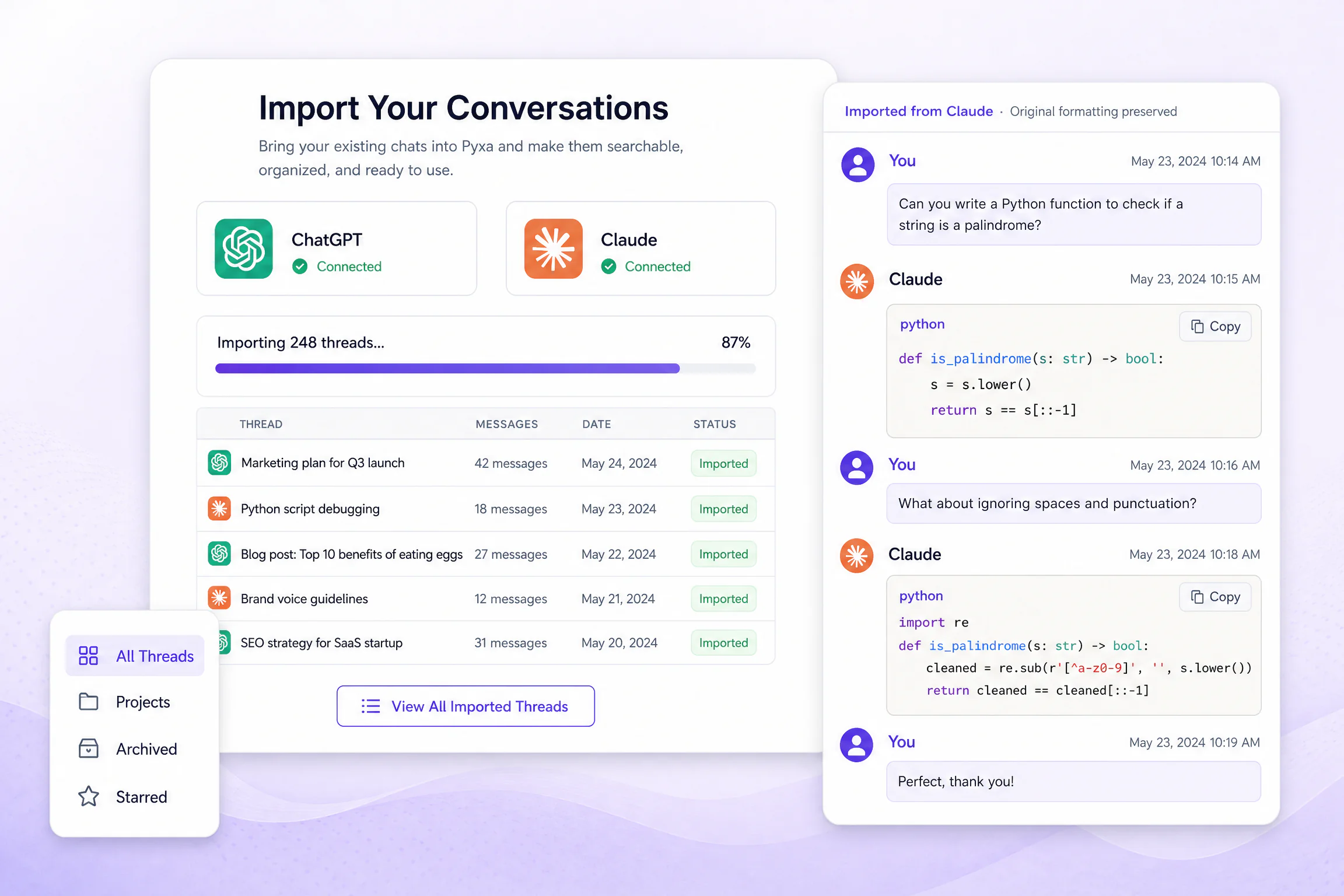
The feature allows you to access your previous conversations, search your imported history, and continue old discussions with available AI models.
Why Should You Import Your ChatGPT and Claude History?
There are several reasons to keep your AI conversations accessible.
Keep Your Previous Work
Your old conversations may contain important research, content ideas, business plans, and technical solutions.
Importing your history helps keep this information available in one place.
Avoid Repeating Previous Instructions
Instead of explaining your project or requirements again, you can open an imported conversation and continue from where you stopped.
Find Old Information Faster
Searching through a large collection of chats can be difficult.
With Pyxa's searchable conversation history, you can look for specific topics and find relevant discussions more easily.
Explore Different AI Models
You don't have to remain dependent on one AI platform. Pyxa brings multiple AI models into one dashboard, allowing you to continue working with different models.
How to Import ChatGPT Conversations Into Pyxa AI
Follow these steps to move your ChatGPT conversation history.
Step 1: Open ChatGPT Settings
Log in to your ChatGPT account and open Settings.
Navigate to the Data Controls section.
Step 2: Request Your Data Export
Select Export Data and confirm your request.
ChatGPT will send an email containing a download link for your conversation data.
Step 3: Download Your Export File
Open the email and download the exported file to your device.
Keep the original export file intact so it can be uploaded to Pyxa.
Step 4: Upload Your File to Pyxa
Visit the Pyxa Import Conversations page:
https://pyxaai.com/ai-writing-tools/import-conversations/
Open the import feature and upload your ChatGPT export file.
Pyxa will process your conversations and bring them into your dashboard.
Step 5: Search and Continue Your Old Chats
After importing, you can browse your previous conversations, search for specific discussions, and open a chat to continue working.
Your previous context is ready to use without manually rebuilding every discussion.
How to Import Claude Conversations Into Pyxa AI
If you use Claude, you can also transfer your conversation history.
Follow these steps.
Step 1: Open Claude Settings
Log in to your Claude account and navigate to Settings.
Step 2: Find the Privacy Section
Open the Privacy settings and locate the conversation data export option.
Step 3: Export Your Conversations
Request your conversation data export and download the file to your device.
Step 4: Upload Your Export to Pyxa
Visit Pyxa AI's Import Conversations page and upload your downloaded Claude export file.
Step 5: Access Your Imported History
Once processing is complete, your imported conversations will appear in Pyxa.
You can search your previous chats and continue working with the available AI models.
What Information Does Pyxa Preserve?
Importing conversations should be about maintaining useful information, not simply transferring plain text.
Pyxa's Import Conversations feature is designed to preserve important elements of your conversation history, including:
- Full conversation threads and messages in their original order.
- Code blocks and formatting.
- Lists and headings.
- Conversation dates and organization.
- Starred and archived chats.
This makes it easier to revisit previous work without losing the structure of your original discussions.
Can You Continue an Imported Chat?
Yes!
One of the most useful aspects of Pyxa's import feature is that imported conversations are not limited to read-only access.
You can open an imported thread and continue the discussion with available AI models.
For example:
Imagine you previously used ChatGPT to develop a marketing strategy. You exported and imported that conversation into Pyxa.
Later, you can open the same discussion, review the original context, and continue developing your strategy using another available AI model.
This creates a more flexible AI workflow.
Tips for Managing Your Imported AI Conversations
After importing your history, consider these simple practices.
1. Organize Important Conversations
Keep frequently used discussions organized so you can access them more easily.
2. Use Search to Find Previous Answers
Search for relevant keywords instead of manually scrolling through old chats.
3. Revisit Previous Projects
Your older conversations may contain ideas and solutions worth using again.
4. Continue Existing Discussions
Whenever possible, build on previous conversations rather than starting from scratch.
5. Keep Your Original Export Files
Maintain a separate backup of your downloaded export files for your own records.
Frequently Asked Questions
Can I import ChatGPT conversations into Pyxa?
Yes. Pyxa supports importing standard conversation export files from ChatGPT.
Can I import Claude conversations?
Yes. You can export your Claude conversations and upload the resulting file into Pyxa.
Do I need to copy and paste every conversation?
No. You can upload your standard export file instead of manually transferring individual conversations.
Will my code blocks and formatting remain intact?
Pyxa's import feature preserves original formatting, including code blocks, lists, and headings.
Can I search imported conversations?
Yes. You can search across your imported history to locate previous discussions and information.
Can I continue an imported conversation?
Yes. Imported conversations can be opened and continued using available AI models in Pyxa.
Final Thoughts
Your AI conversation history contains valuable information, and switching platforms shouldn't mean abandoning everything you've previously created.
With Pyxa AI, you can import your ChatGPT and Claude conversations, organize your history, search previous discussions, and continue working with different AI models from one dashboard.
The process is simple: export, upload, and continue.
Ready to bring your AI conversations together?
Get started with Pyxa AI Import Conversations:
https://pyxaai.com/ai-writing-tools/import-conversations/

 English
 Arabic
 French
 Spanish
 Portuguese
 Turkish
 Dutch
 Italiano
 Russian
 Romaian
 Portuguese (Brazil)
 Greek