


JSON-LD Schema Markup for Beginners: How to Write, Validate, and Fix Structured Data
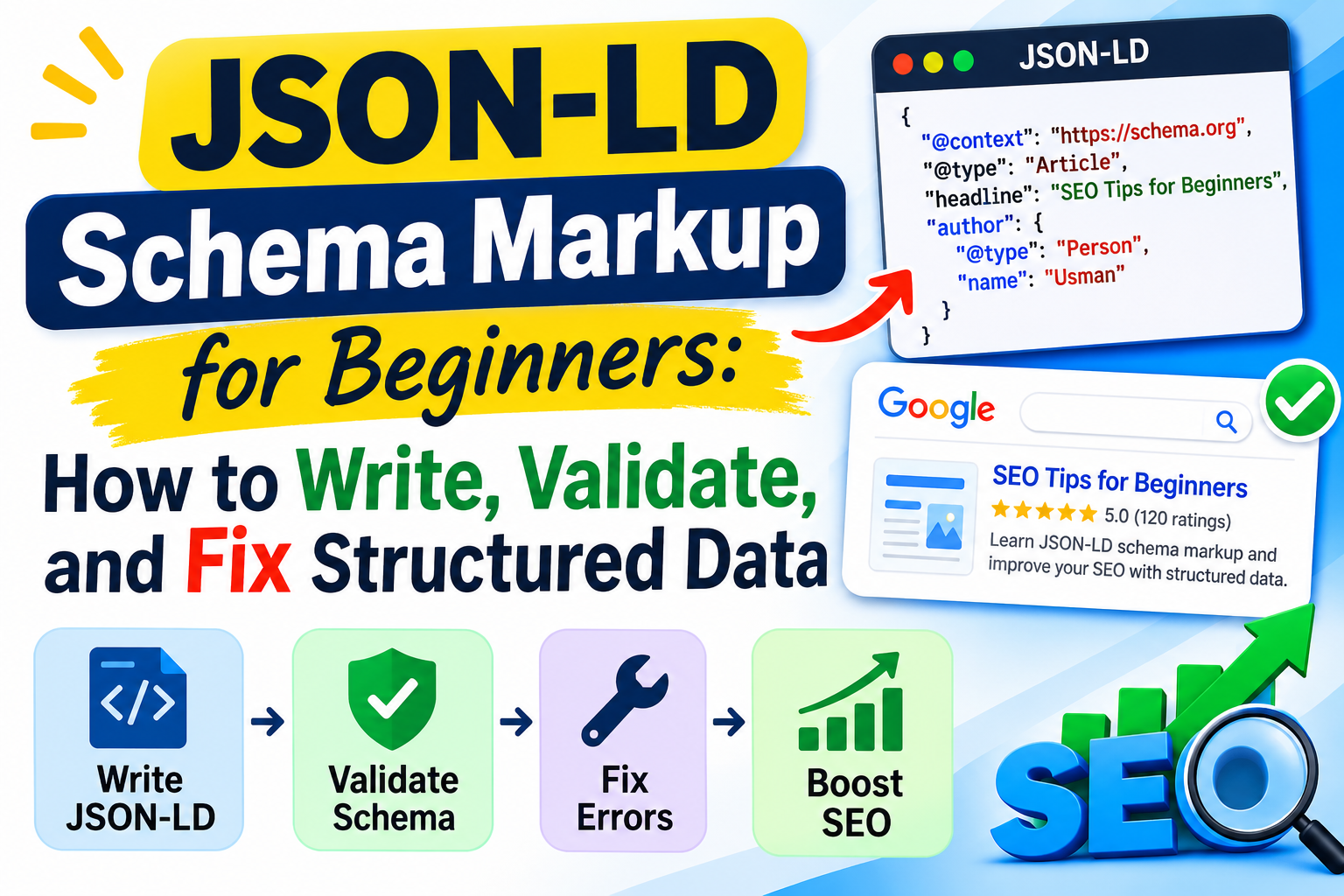
You have probably seen search results that show more than a title and a description: star ratings, prices, event dates, or recipe details. Many of these come from structured data, a way of describing a page's content so that machines can understand it.
The most common way to write structured data is JSON-LD schema markup. This guide explains what it is, shows a simple example, and walks through how to validate and fix your markup before you publish it.
Quick answer: JSON-LD is a block of code that describes the content of a page using the Schema.org vocabulary. Write it to match what visitors can actually see, validate the syntax and properties, then test it with official tools.
What Is Structured Data?
A human reader can look at a page and see that it describes a company, a product, or an article. Search engines have to work that out from text and layout. Structured data removes some of the guesswork by stating it directly: this page is about an organization, and here are its name, website, and logo.
Structured data does not change how your page looks. It adds a machine-readable description alongside the visible content.
JSON-LD, Microdata and RDFa
There are three common formats for adding structured data:
|
Format |
How it works |
Main drawback |
|
JSON-LD |
A separate block of JSON inside a script tag |
Must be kept in sync with the visible page |
|
Microdata |
Attributes added to existing HTML elements |
Mixed into your page code, harder to maintain |
|
RDFa |
Attributes added to HTML elements |
Less familiar to many developers |
Google documents all three, but it recommends JSON-LD, mainly because it is easier to add and maintain without touching the page layout.
The Anatomy of a JSON-LD Block
Here is a basic example describing an organization:
{
"@context": "https://schema.org",
"@type": "Organization",
"name": "Blue Harbor Studio",
"url": "https://www.example.com",
"logo": "https://www.example.com/images/logo.png"
}
|
Part |
What it does |
|
@context |
Tells machines which vocabulary you are using, here Schema.org |
|
@type |
States what kind of thing you are describing |
|
name, url, logo |
Properties that give details about that thing |
On a real page, this code sits inside a script tag with the type application/ld+json, usually in the head or the body.
How to Add Schema Markup Step by Step
Step 1: Decide What the Page Is About
One page, one main subject. A blog post is an article, a company homepage describes an organization, a shop page describes a product. Choose the entity that matches the main purpose of the page.
Step 2: Pick the Matching Schema Type
Browse the Schema.org list and choose the most specific type that is accurate. Avoid adding types just because they sound valuable.
Step 3: Write Markup That Matches the Visible Content
Every value in your markup should also be visible to visitors on the page. If the markup says a product costs a certain price, that price should appear on the page.
Step 4: Place the Code in a Script Tag
Add your JSON inside a script tag with the type application/ld+json. Content management systems and plugins can often do this for you.
Step 5: Validate the Syntax and Properties
This is where most mistakes are caught. A basic checker reads your code and reports three things: whether the JSON is valid, which schema types it found, and which common properties are missing. If you want a quick way to review a block before it goes live, a free schema markup checker lets you paste the code and see the results without signing up.
Step 6: Test With Official Tools
A basic checker is a first filter, not the final word. Also test eligible pages with the Schema.org Validator and Google's Rich Results Test, because each tool checks different things.
Step 7: Monitor After Publishing
Structured data can break when a template, plugin, or page changes. Re-test after updates, and watch the enhancement and error reports in Google Search Console.
Which Schema Type Fits Which Page?
|
Page |
Common type |
What it describes |
|
Company homepage |
Organization, WebSite |
The business and the site |
|
Blog post |
Article or BlogPosting |
Headline, author, dates |
|
Product page |
Product |
Name, description, price, availability |
|
Local business page |
LocalBusiness |
Address, hours, phone number |
|
Navigation trail |
BreadcrumbList |
The path to the current page |
|
Author page |
Person |
Name and profile details |
Schema.org contains many more types. Choose the ones that honestly describe your content.
Common Errors and How to Fix Them
|
Error |
What it looks like |
Fix |
|
Trailing comma |
A comma after the last property in an object |
Remove it |
|
Curly quotes |
Quotation marks pasted from a word processor |
Replace with straight quotes |
|
Missing context |
No @context line |
Add "@context": "https://schema.org" |
|
Wrong type |
A type that does not describe the page |
Choose a more accurate type |
|
Bad URL |
A link missing the protocol or pointing nowhere |
Use a full, working URL |
|
Invalid date |
A date written as plain words |
Use a standard format such as 2026-11-01 |
|
Mismatch |
Markup says one thing, the page says another |
Update one to match the other |
Does Valid Markup Guarantee Rich Results?
No. Valid JSON-LD only means the code is readable. Whether a page can show a special search feature depends on the type of markup, the quality and content of the page, and Google's current guidelines. Supported features change over time, so check Google's structured data documentation for the latest list.
Two rules matter above all:
-
Markup must represent content users can see. Hidden or invented data is against Google's guidelines and can lead to penalties.
-
Be accurate. Do not mark up reviews, ratings, or details that do not exist on the page.
Beginner Checklist
-
Use JSON-LD inside an application/ld+json script
-
Include @context and @type
-
Use a type that matches the main content of the page
-
Match every value to what is visible on the page
-
Use full URLs and standard date formats
-
Check commas, brackets, and quotation marks
-
Validate, then test with official tools
-
Re-test after template or plugin changes
Frequently Asked Questions
What is JSON-LD schema markup?
JSON-LD is a format for writing structured data. It uses the Schema.org vocabulary to describe the entities and content on a page in a way machines can read.
Do I need to know how to code to add schema markup?
Basic JSON helps, but many content management systems and plugins can generate markup for you. You still need to check that the output is accurate.
Is structured data a ranking factor?
Google has said structured data helps it understand content and can make pages eligible for certain search features. It is not a guaranteed way to rank higher.
How do I check my schema markup?
Paste your JSON-LD into a validator to check syntax, types, and properties, then use Google's Rich Results Test and the Schema.org Validator for further checks.
Can wrong schema markup hurt my site?
Markup that is misleading, hidden, or fabricated can violate guidelines and may cause Google to ignore it or take action. Accurate markup that has small errors is usually just ignored for features it cannot use.
Conclusion
JSON-LD schema markup is a practical, low-risk way to describe your pages clearly, as long as it is accurate. Choose the right type, write markup that mirrors the visible page, validate it before publishing, and keep checking after changes. Start with one page and one type, and build from there.

 English
 Arabic
 French
 Spanish
 Portuguese
 Deutsch
 Dutch
 Italiano
 Russian
 Romaian
 Portuguese (Brazil)
 Greek