


What Makes a Conference Website Template Easy to Update During Live Events?
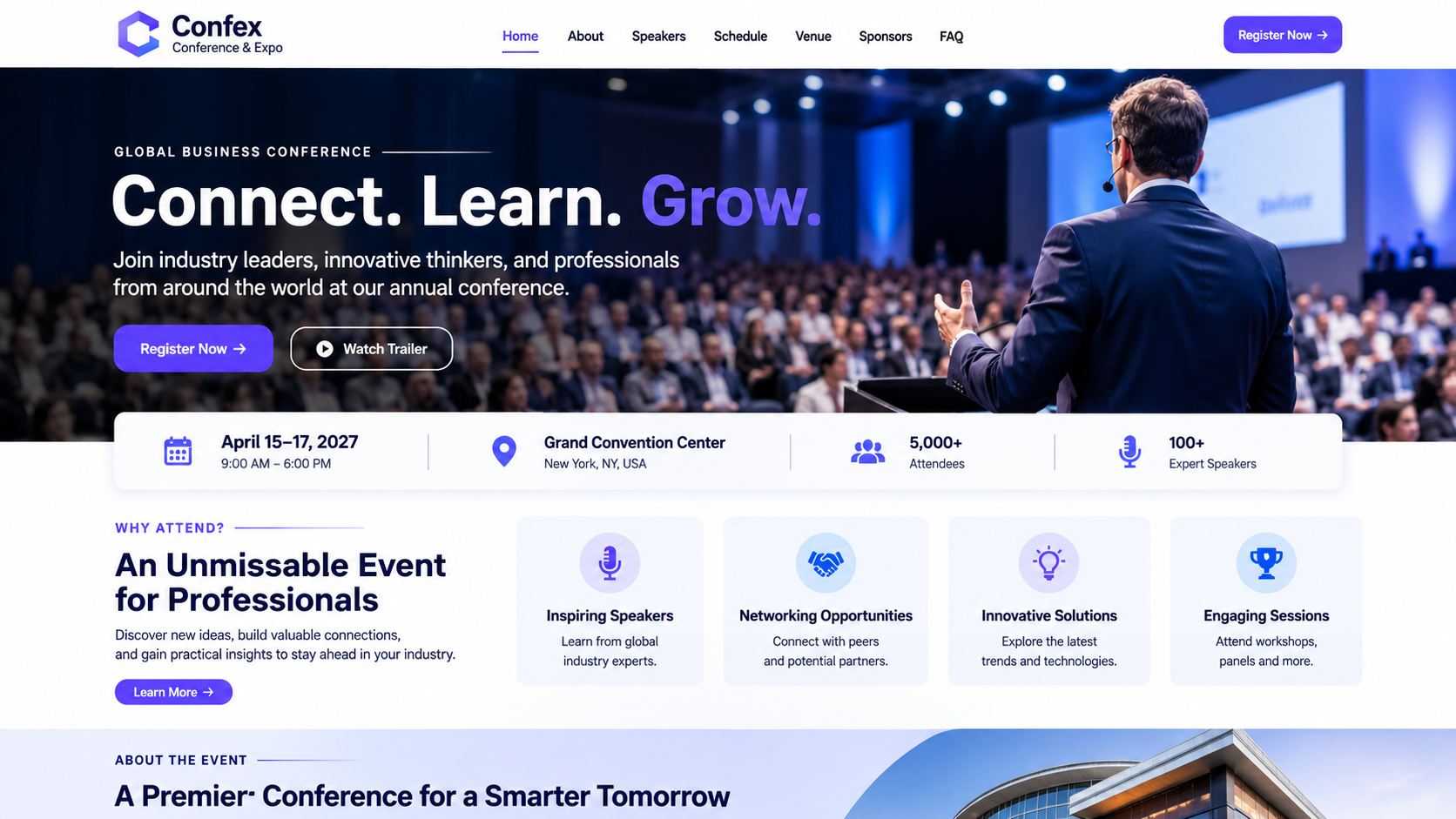
Picture the first morning of a big conference. Doors open at 9am. By 9:15, a keynote speaker is stuck in traffic, the second session has moved to a different room, and lunch is running half an hour late. Attendees are standing in the hallway with their phones out, refreshing your website and asking one thing: "Where do I need to be?" A conference website template can help organisers share real-time schedule updates, announce location changes, and guide attendees to the right place.
If your site still shows yesterday's schedule, people get confused, frustrated and start asking your staff the same questions over and over. If it's updated within minutes, everything feels calm and organized.
That's why a conference website needs to be easy to change quickly, even by someone who isn't a developer. Here's what makes a conference website template good at this, explained in plain words.
Why Live Updates Matter So Much
Things Always Change
Speakers cancel, sessions overrun, rooms switch and weather causes delays. Even well-planned events have last-minute changes. Your website should be able to keep up.
Attendees Check Their Phones Constantly
Most people don't carry a printed schedule. They look at their phone between sessions. If the information is out of date, they lose trust fast.
Your Team Is Busy
During a live event, your staff are dealing with speakers, guests, equipment and a hundred small problems. Nobody has time to wrestle with a complicated website. Updates need to take a minute or two, not an hour.
Simple Editing for Non-Technical Staff
A Clean, Easy Dashboard
Choose a template that works with the standard WordPress editor and doesn't hide settings in confusing places. Your team should be able to log in, find the page and change the text without needing training.
Drag-and-Drop Page Building
Many good templates include a visual builder. Staff can click on a block, type the new information and save. No code, no stress.
Clearly Labelled Sections
When page sections have sensible names, such as "Day 1 Schedule" or "Announcements," staff can find what they need in seconds. Confusing labels slow people down at the worst moment.
Fewer Steps to Publish
The fewer clicks between "edit" and "live," the better. Look for a simple update button and a quick preview option, so mistakes are caught before they're published.
A Schedule That's Easy to Change
Use a Dedicated Schedule or Agenda Layout
The best conference templates have a schedule block where each session is its own entry. Staff can change a time or room without rebuilding the whole page.
Edit One Session at a Time
If the schedule is built as separate items, you can update a single session and the page adjusts itself. That's much safer than editing one giant block of text, where it's easy to delete something by accident.
Mark Changes Clearly
Add a small label like "Room changed" or "New time" so attendees notice what's different. A template that lets you add tags or short notes to each session makes this simple.
Keep Days and Tracks Organized
If your event has several days or parallel tracks, tabs or filters help attendees find what they need. Check that staff can update each tab without confusing the others.
Speaker Pages That Are Quick to Edit
Individual Speaker Profiles
Each speaker should have their own entry with name, photo, short bio and sessions. If a speaker drops out, staff can unpublish or replace one profile in a minute.
Reusable Speaker Cards
Templates that use cards or grids update automatically when a new speaker is added. You don't have to rearrange the whole page.
Easy Photo Replacement
Staff should be able to swap a photo by clicking on it. Avoid templates that need image sizes to be set by hand.
Announcements and Alerts
A Banner or Notice Bar
A message bar at the top of the site is one of the most useful tools at a live event. It lets you post urgent news like "Lunch is now in Hall B" and have it show on every page at once.
A Simple News or Updates Section
A short feed of recent updates helps attendees see what's changed. Newer posts at the top, with timestamps, work well.
Pop-Ups Used Sparingly
Pop-ups can be helpful for important changes, but too many annoy people. Pick a template that lets you turn them on and off easily.
Safety and Emergency Information
Keep a clearly marked place for urgent notices. Make sure the right staff can reach it quickly. Follow your venue's rules and have a responsible person review the wording of any safety messages.
Speed and Reliability Under Pressure
Fast-Loading Pages
During live events, hundreds or thousands of people may visit at once. Heavy images, big animations and bulky add-ons slow things down. Choose a lightweight template and compress images.
Good Hosting and Caching
A well-built site can handle spikes in traffic. Ask your hosting company about handling busy periods, and learn how to clear the site's cache so updates appear straight away. This is one of the most common reasons people say "I updated it, but nothing changed."
Mobile-First Design
Most attendees will use phones. Test your pages on several devices, with big buttons, readable text and no sideways scrolling.
Backups Before You Start
Before the event begins, make a full backup. If something goes wrong, you can restore it quickly.
Roles and Permissions for Your Team
Give the Right People the Right Access
Not everyone needs full control. Set up roles so that session managers can edit the schedule, communications staff can post announcements and only a few people can change settings or plugins.
Keep a Small Update Team
Too many editors at once can cause conflicts. Pick two or three people responsible for live updates, and make sure they know what to do.
Make a Simple Checklist
Write a one-page guide such as "How to change a session time," "How to post an announcement" and "How to clear the cache." Keep it somewhere easy to find during the event.
Helpful Extras for Attendees
Add to Calendar Buttons
Let attendees add sessions to their phone calendar. If you change a session, make sure you explain how people can get the updated version.
Maps and Directions
Venue maps with room names help people find changed sessions quickly. Make sure staff can update map notes if rooms switch.
Contact and Help Options
Show a clear help desk number, an email address or a chat option. It reduces the number of people stopping staff in hallways.
Live Streams or Replays
If you offer a live stream, make sure staff can change the link or add recordings easily.
Before the Event: Test Everything
Do a Practice Run
A week before the event, ask your team to make fake updates. Change a session, post an announcement and replace a photo. If anything feels confusing, fix it now.
Test on Real Phones
Check that updates show properly on both Android and iPhone, with different browsers.
Check Privacy and Security
If your site collects attendee details, use secure forms and trusted tools. Check which privacy rules apply to your event, and keep user accounts protected with strong passwords.
Conclusion
A good conference website template makes live changes feel easy. Simple editing, a flexible schedule layout, quick speaker updates, a notice bar for urgent news, fast pages and clear team roles all help you keep attendees informed when things shift on the day. Test your setup well before the event so your team feels confident when it counts. If you'd like a solid starting point, premium website templates made for conferences usually include schedule blocks, speaker grids, announcement bars and mobile-friendly layouts, so you can update your event site quickly without stress.
Frequently Asked Questions
1. Why does a conference website need to be easy to update?
Because schedules, rooms and speakers often change during live events. If your site is slow to update, attendees get confused and your staff end up answering the same questions again and again.
2. What template features make live updates easier?
A simple editor or drag-and-drop builder, a separate entry for each session, speaker cards, a top notice bar for announcements and clearly labelled page sections all help a lot.
3. Who should be allowed to edit the site during the event?
A small team of two or three trusted people is best. Give them roles that match their jobs, like schedule editing or announcements, and keep full admin access limited.
4. Why don't my updates always show up straight away?
Often it's caching. The site may be showing an older saved copy. Learn how to clear the cache on your hosting or caching plugin, so changes appear quickly.
5. How can I prepare my team before the event?
Run a practice session a week or so earlier. Have staff try changing a session, posting a notice and replacing a photo, and give them a simple one-page checklist for the live event.

 English
 Arabic
 French
 Spanish
 Portuguese
 Deutsch
 Dutch
 Italiano
 Russian
 Romaian
 Portuguese (Brazil)
 Greek